 Raw Smith
Guide
Organise your library: albums, smart albums, keywords and search
Raw Smith's library groups your RAWs by day and lets you organise them with albums, smart albums, keywords and captions. Select photos to file, rate, rename or export them together, and use search and filters to find the ones you want.
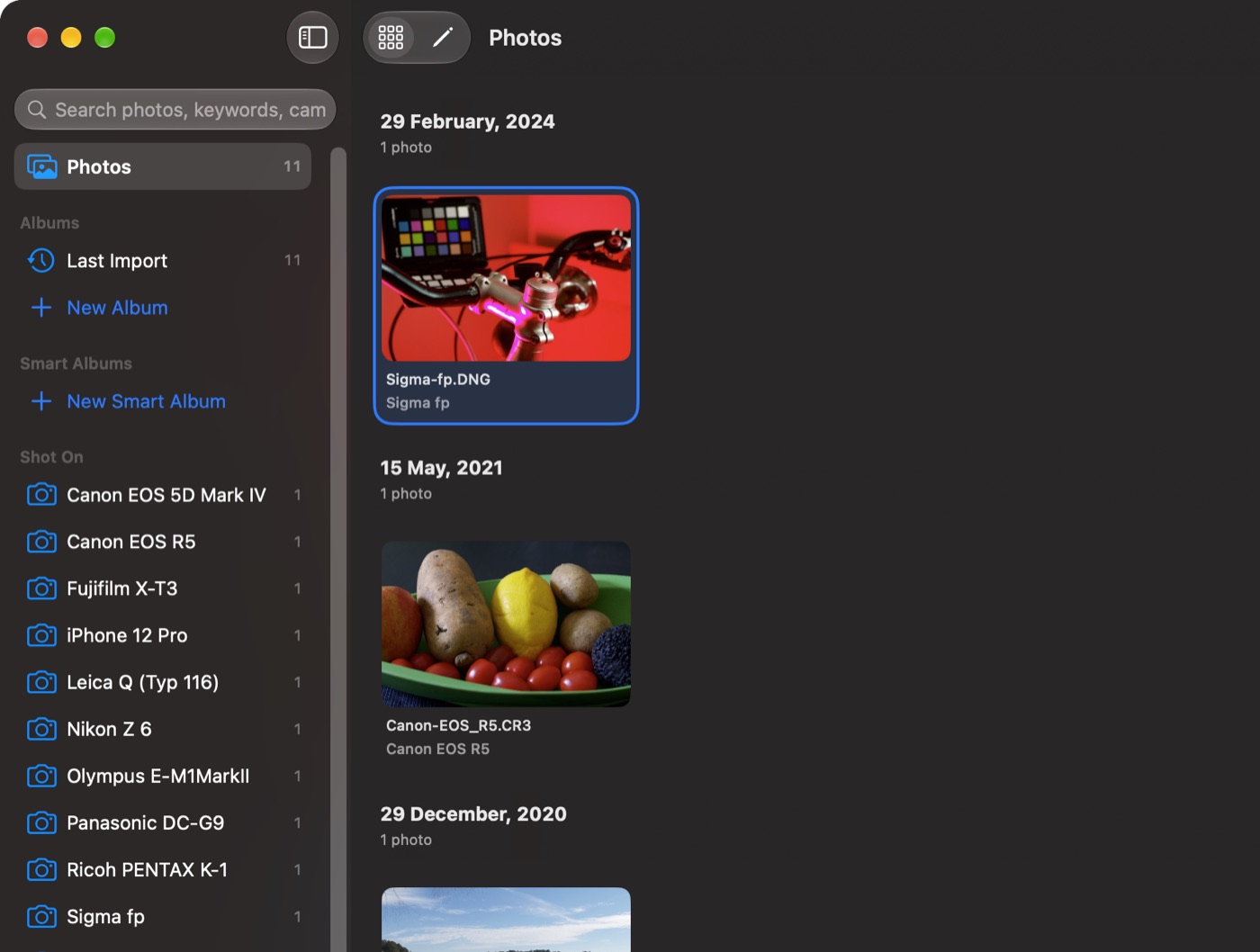
The photo grid
Photos are grouped by the day they were taken, newest first, under headers such as Today, Yesterday or a date. Each thumbnail shows its flag, stars and colour label, and virtual copies carry a COPY badge.
| iPhone | Pinch the grid to show from two to six columns. Tap a photo to open it; touch and hold to start selecting, then drag across photos to select more. |
|---|---|
| iPad | Tap to open, or tap Select to pick several. The Thumbnail size slider is at the bottom of the grid. |
| Mac | Click to select, double-click or press Return to open. ⌘-click adds to the selection, Shift-click selects a range, arrow keys move and ⌘A selects everything. Right-click for every action. |
With photos selected, the selection bar offers Mark (flag, rating and colour label), Export, More and Delete. Each day's header also has its own Select button.
The sidebar and the Albums tab
On the Mac and iPad the sidebar holds Photos, Devices (a connected camera or card), Albums with Last Import, Smart Albums, and lists of Keywords, Shot On (camera models) and Lenses, each with a count.
On iPhone the same lists live in the Albums tab, next to Photos and Search along the bottom.
How to create an album and add photos
- Choose New Album (in the sidebar on Mac and iPad, in the Albums tab on iPhone), type a name and tap Create.
- Select photos in the grid and choose More › Add to Album. On the Mac you can also drag photos onto an album in the sidebar.
Inside an album, Remove from “Album” takes photos out of it without deleting them. To rename or delete an album, right-click it on the Mac, touch and hold it on iPad, or swipe it on iPhone. Deleting an album keeps its photos in your library.
How to make a smart album
A smart album fills itself from rules and stays up to date as you rate and keyword photos. Choose New Smart Album, give it a Name, and add rules with Add Rule. Match decides whether a photo must meet All of these rules or Any of these rules; the sheet shows how many photos match as you go.
Rules can test Rating, Flag, Color Label, Keyword, Camera, Lens, File Type, Capture Date, ISO, Aperture, Focal Length, whether a photo is Edited, and its Name or Caption. For example, “Rating is at least 4” and “Capture Date is in the last 30 days” gives you a running set of recent keepers.
Keywords and captions
Select one or more photos and choose More › Keywords… (or right-click › Keywords… on the Mac). Type keywords separated by commas under Add Keywords, tap one to remove it, or pick from Suggestions.
A caption is a line of text that goes with a photo. It prints in an export's frame and goes into the exported file's description. On iPhone, tap the photo's title in the editor and choose Add Caption…. On iPad and Mac, use Add a Caption in the photo's info overlay.
To take ratings, labels, keywords and captions to Lightroom or Capture One, select photos and choose More › Write XMP Sidecars.
How to search and filter photos
Search matches a photo's file name, keywords, caption, camera model and lens model. On the Mac and iPad, type into the toolbar's search field; on iPhone, use the Search tab.
The Filter menu narrows what the grid shows:
- Flag: Picks, Rejects or Unflagged.
- Rating: one star and up, through five stars.
- Color Label: one colour.
- Edit Status: Edited or Unedited.
- Camera: one camera model.
Active filters appear as chips above the grid; remove one by tapping it, or choose Show All Photos to clear them all. The count at the bottom reads, for example, “120 of 1,540 photos”.
How to rename photos
For one photo, choose Rename… and type a name; the extension stays the same. For several, select them and choose More › Rename…, then build a Pattern from tokens: Name, Album, Date, Number, Camera and Lens. A pattern such as {date:yyyy-MM-dd}-{seq:3} gives names like 2026-10-15-001.
On the Mac, renaming changes the name in the library and the name exports are given. On iPhone and iPad, the RAW in Raw Smith's Files folder is renamed too. The Mac shortcut is ⇧⌘R.
How to delete photos
Select photos and choose Delete, or press Delete on the Mac. Raw Smith asks first, because this can't be undone: there's no Recently Deleted. The RAWs Raw Smith keeps in its own storage are deleted too, and with iCloud sync on, the photos are deleted on your other devices. On the Mac, RAWs you imported from a folder and that stay where they were are left on disk.
To set photos aside without deleting them, reject them instead and filter them out.
Questions
How do I make an album in Raw Smith?
On the Mac and iPad, use New Album under Albums in the sidebar; on iPhone, open the Albums tab and tap New Album. To file photos, select them and choose More › Add to Album, or drag them onto an album in the Mac sidebar.
What is a smart album?
An album that fills itself from rules, such as rating is at least 4 stars and camera contains X-T5. Choose New Smart Album, add rules, and pick whether photos must match all of them or any.
Can I search my RAW photos by camera or lens?
Yes. Search matches file names, keywords, captions, camera models and lens models. The Shot On and Lenses lists in the sidebar or Albums tab also group photos by camera and lens.
Does deleting a photo in Raw Smith delete the RAW file?
It deletes the RAW that Raw Smith keeps in its own storage, and with iCloud sync on it deletes the photo on your other devices too. There's no Recently Deleted, so this can't be undone. On the Mac, RAWs you imported from a folder and that stay where they were are left alone.