 Raw Smith
Guide
Crop, straighten and fix perspective
To crop in Raw Smith, open the Crop tab, choose an aspect ratio and drag the crop box's handles on the photo. The same tab straightens the horizon, rotates and flips the photo, and corrects perspective. Like every edit, the crop can be changed or reset later.
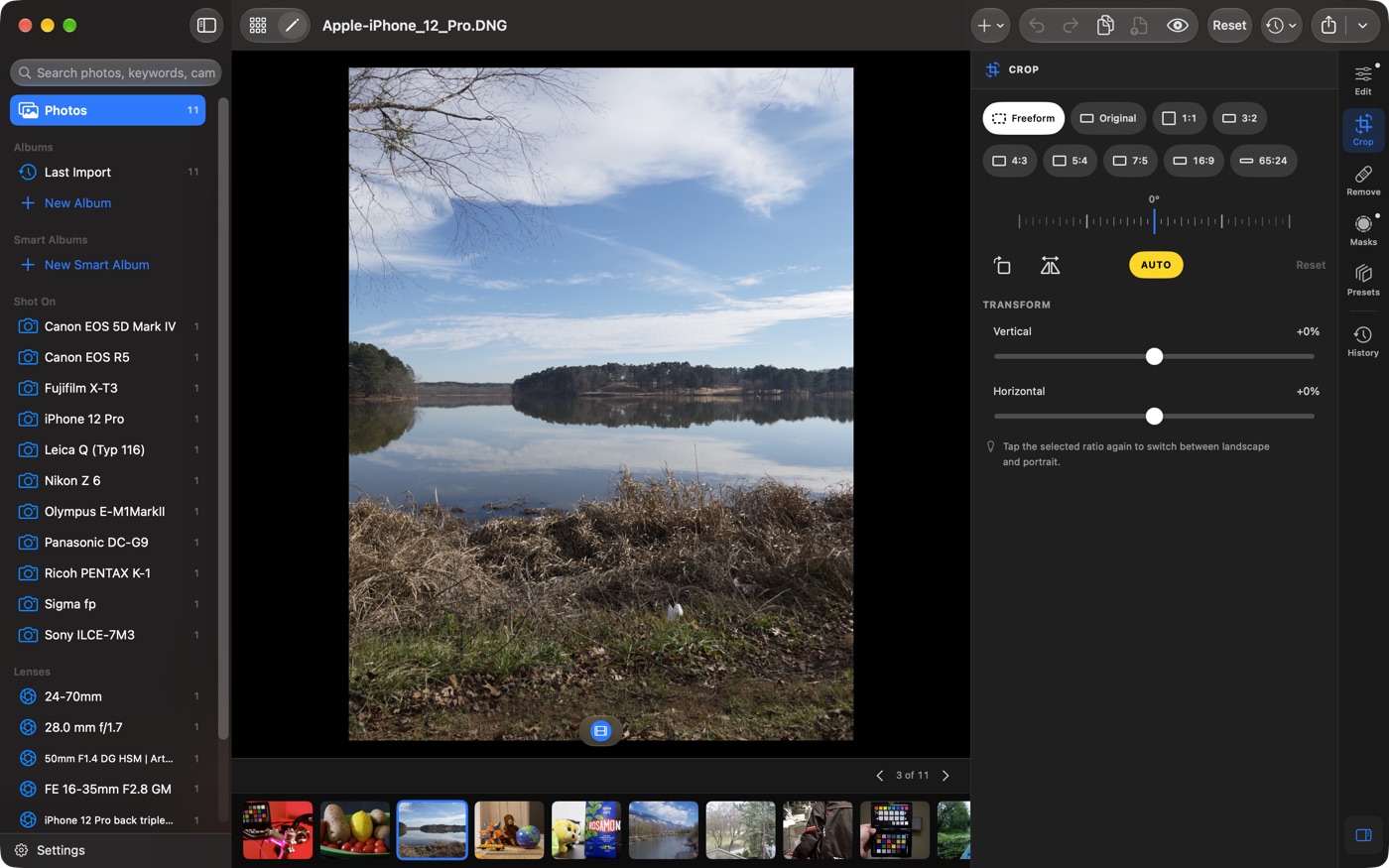
How to crop a photo
- Open the photo and choose the Crop tab (R on the Mac and on iPad with a keyboard).
- Pick an aspect ratio, or Freeform for any shape.
- Drag any of the eight handles to resize the crop, or drag inside it to move it. A rule-of-thirds grid appears while you drag.
- Choose another tab when you're done. On iPhone, tap the Crop tab again to close it.
Aspect ratios
| Freeform | Any shape. |
|---|---|
| Original | As shot. |
| 1:1 | Square. |
| 3:2 | Most interchangeable-lens cameras. |
| 4:3 | Micro Four Thirds, iPhone and medium format such as GFX. |
| 5:4 | Large format and 8×10 prints. |
| 7:5 | 5×7 prints. |
| 16:9 | Widescreen. |
| 65:24 | The XPan panorama. |
Tap the selected ratio again to switch it between landscape and portrait.
How to straighten a photo
Drag the straighten dial to turn the photo up to 10° either way; the crop grows or shrinks so no empty corners show. Double-tap or double-click the dial to put it back to level.
To level the horizon automatically, tap AUTO. Raw Smith looks for the horizon and straightens to it. If it shows No horizon found, there wasn't a clear line to use; straighten by hand instead.
Rotate and flip
Rotate 90° turns the photo a quarter turn to the right; tap it again to keep turning. Flip mirrors the photo left to right.
How to fix perspective and converging lines
Under Transform, Vertical corrects lines that lean together, such as the sides of a building shot from below, and Horizontal does the same from side to side. Move the slider until the lines are parallel, then tidy up the crop.
When perspective is set, the handles of masks and Remove spots can sit slightly off what they cover. Correct perspective first, then add masks and spots, and check them after.
Resetting the crop
Reset in the Crop tab puts the crop, angle, rotation, flip and perspective back as shot. Pasting adjustments onto other photos leaves their crop alone; to copy a crop on purpose, tick Crop in Copy Settings….
Next: edit parts of the photo with masks, or export it.
Questions
How do I straighten a crooked horizon?
Open the Crop tab and drag the straighten dial, which turns the photo up to 10° either way. Or tap AUTO to level the horizon for you; if it says No horizon found, straighten by hand.
How do I switch a crop between landscape and portrait?
Tap the selected aspect ratio again. Each tap switches the crop between landscape and portrait.
Can I fix converging verticals in buildings?
Yes. In the Crop tab, under Transform, the Vertical slider corrects lines that lean together, and Horizontal does the same side to side.
Is cropping in Raw Smith destructive?
No. The crop is a setting like any other edit; the RAW keeps every pixel, and you can change or reset the crop at any time.